



Why I Stopped Building BOQ Excel Templates from Scratch
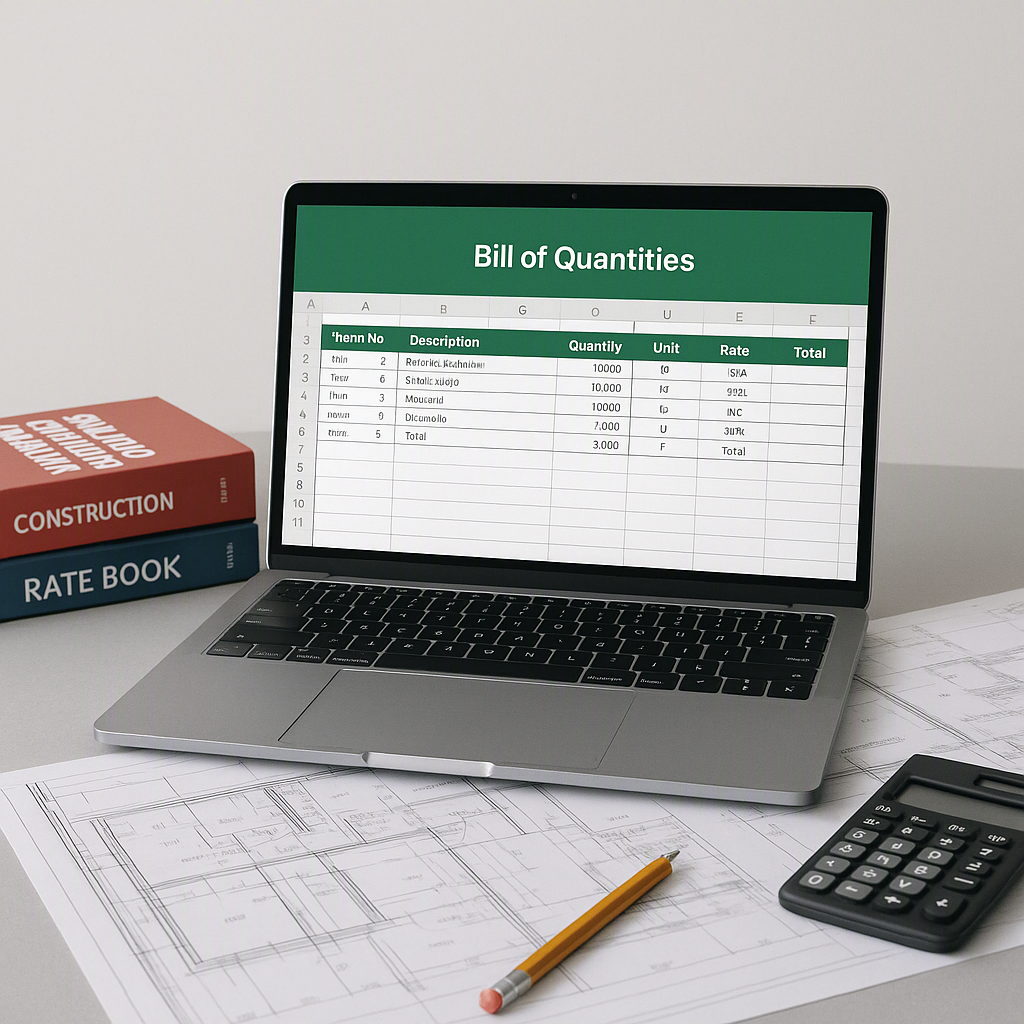
Creating a Bill of Quantities (BOQ) Excel Template: Expanded Guide
Introduction
Creating a Bill of Quantities (BOQ) Excel template seems simple in theory: set up columns for item description, quantity, unit rate, and total cost, add a few formulas, and you’re good to go. That’s the approach many people take, thinking it saves time and avoids learning new tools. But as projects grow in complexity, this approach can quickly become a liability. From scope changes to inflation adjustments to version chaos, relying solely on Excel can lead to wasted hours and costly mistakes.
A 2021 survey by the Chartered Institute of Building (CIOB) revealed that over 20% of construction professionals reported critical errors in project estimates due to manual spreadsheet issues. These mistakes often result in budget overruns or project delays, underscoring the importance of a robust and well-structured BOQ system.
This guide will walk you through actionable methods to set up a reusable BOQ template, highlight the limitations of Excel, and suggest when it’s time to consider advanced tools like EstimateNext. By the end, you’ll have a clear roadmap for simplifying your BOQ process.
Why Excel Fails for Complex BOQs
Excel feels familiar and versatile, which is why so many construction professionals default to it. It’s cheap (often free), accessible, and offers full control. But when it comes to the intricacies of construction estimation, Excel’s drawbacks become glaring. Let’s break them down:
1. Scope Changes Wreak Havoc
When project scope changes mid-way, Excel templates often require manual updates. For example, adding new rows for additional items or adjusting quantities for revised tasks can break formulas and cause cascading errors. Misaligned rows or columns can lead to incorrect totals, making your BOQ unreliable.
According to a 2019 report by the Royal Institution of Chartered Surveyors (RICS), errors caused by scope changes and improper BOQ management account for 15-20% of cost overruns in medium to large construction projects.
Actionable Steps:
- Use structured tables: Instead of static rows and columns, turn your BOQ data into structured tables. Structured tables allow formulas to automatically adjust as rows or columns are inserted.
- Define named ranges: Replace cell references like
A1:B1with named ranges such asMaterial_Costs. Named ranges are easier to manage and less prone to errors during scope changes. - Track changes: Enable Excel’s “Track Changes” feature when sharing files among team members to identify modifications and revert if necessary.
2. Inflation and Rate Adjustments Are Tedious
Prices fluctuate due to inflation, market conditions, or supplier changes. If you’re manually updating rates for every project, you’re inviting errors and wasting time. Additionally, rates might vary based on location, material type, or seasonal trends, making consistent updates a headache.
Recent data from the U.S. Bureau of Labor Statistics (BLS) shows that construction material prices increased by over 19% between 2020 and 2021, the largest one-year rise in decades. Such fluctuations make manual updates to BOQ templates not only time-consuming but also prone to error.
Actionable Steps:
- Create a centralized rate table: Separate your rate data into another Excel sheet within the same workbook. This sheet should list materials, units, and updated rates.
- Use lookup formulas: Apply Excel’s
VLOOKUPorINDEX-MATCHfunctions to dynamically update rates based on your centralized rate table. - Use named ranges for inflation adjustments: Define a named cell for the inflation rate (e.g.,
Inflation_Factor) and use it in your formulas to adjust rates globally.
3. Version Chaos with Multiple Editors
When multiple team members edit the same BOQ file, discrepancies are inevitable. Overwritten formulas, outdated versions, and conflicting inputs can lead to hours of reconciliation. Sharing files via email only exacerbates the problem.
In a 2020 study by Software Advice, 83% of construction professionals reported that version control issues in Excel caused delays in their project estimation process.
Actionable Steps:
- Adopt cloud-based tools: Use Google Sheets or Microsoft Excel Online to enable real-time collaboration.
- Version history: Leverage cloud platforms that maintain version control, allowing you to roll back to previous versions when errors occur.
- Access permissions: Restrict editing rights to critical cells and sheets, ensuring inputs are only modified by authorized personnel.
4. Formula Errors Can Derail Projects
One wrong formula can throw off your entire calculation. Debugging these errors during critical moments—like a tender submission—can lead to missed deadlines. For example, a misplaced parenthesis or incorrect cell reference can alter total project costs.
A study by the European Spreadsheet Risks Interest Group (Eusprig) estimated that 88% of spreadsheets contain errors, many of which remain undetected until they cause significant financial losses.
Actionable Steps:
- Audit formulas regularly: Use Excel’s
Trace PrecedentsandTrace Dependentstools to identify errors or inconsistencies in formulas. - Error handling: Apply
IFERRORfunctions to gracefully handle errors. For instance:
=IFERROR(A1/B1, "Error: Division by Zero")
- Use conditional formatting: Highlight cells with unusual values (e.g., negative costs or values exceeding expected ranges) to flag potential issues.
- Lock formulas: Protect cells containing critical formulas so they cannot be accidentally edited.
How to Build a Reusable BOQ Template
Instead of creating a new template for every project, standardize one that’s adaptable and error-proof. Here’s a step-by-step guide:
1. Pre-Fill Item Descriptions
Compile a list of common items used in your projects and pre-fill them into your template. This saves time and reduces input errors. For example:
- Concrete (per cubic meter)
- Steel reinforcement (per metric ton)
- Labor (per hour)
2. Link Inflation Adjustments
Create a separate sheet for inflation rates or supplier price indices. Link these to your main BOQ sheet so rates update automatically, ensuring a consistent and accurate cost estimate.
3. Automate Scope Changes
Utilize Excel’s structured tables to build formulas that automatically adjust for changes in quantity, unit rates, or item inclusions. Set up a master list of all project line items and use dropdown menus for easier selection.
4. Build Error-Proof Formulas
Use nested formulas to account for complex calculations. For instance, you can calculate total cost by combining quantity, unit rate, and overhead percentage:
=IFERROR((A2*B2)*(1+C2), "Error")
5. Protect Critical Cells
Lock cells containing formulas and key data to prevent accidental edits. Use Excel’s sheet protection feature and password-lock sensitive areas.
Advanced Tools to Streamline BOQs
While Excel can handle small-scale projects, tools like EstimateNext provide the automation and intelligence needed for larger, more complex tenders. Here’s how they compare:
| Feature | Excel | EstimateNext |
|---|---|---|
| Ease of Use | Familiar interface, but manual setup | Intuitive interface with automation |
| Rate Adjustments | Manual input or formula-based | Linked to rate databases |
| Handling Scope Changes | Requires manual updates | Auto-updates with linked formulas |
| Version Control | Prone to version chaos | Cloud-based with real-time updates |
| Error Handling | Limited debugging tools | AI-powered error detection |
| Additional Features | Basic calculations | AI-powered rate matching, bid intel |
When to Transition to Advanced Tools
While Excel is sufficient for small-scale projects, consider transitioning to tools like EstimateNext if:
- You regularly work on tenders worth millions.
- Scope changes are frequent and complex.
- Inflation adjustments and rate analysis consume too much time.
- Your team struggles with version control.
- You need advanced features, such as AI-powered rate matching or bid intelligence.
FAQs
1. Can’t I just use Excel forever? Why switch?
Excel is great for basic tasks, but as projects grow in scale and complexity, its limitations become more apparent. Advanced tools like EstimateNext save time, ensure accuracy, and provide features like automated rate adjustments and bid intelligence that Excel can’t match.
2. How do I avoid formula errors in Excel BOQs?
Use tools like Trace Precedents and Evaluate Formula to debug errors. Lock critical cells to prevent accidental overwrites, and use IFERROR functions to capture and handle mistakes.
3. Are cloud-based tools secure for BOQs?
Yes, reputable tools like EstimateNext use encryption and access control to ensure data security. Always verify the security features of the tool you choose and ensure they comply with industry standards.
4. What’s the cost of switching to advanced tools?
Costs vary depending on the tool and its features. Many offer tiered pricing based on usage, so you can start small and scale up as needed. The time savings and error reduction often offset the subscription costs.
5. Can I integrate advanced tools with my existing Excel workflow?
Yes, tools like EstimateNext allow you to upload existing Excel files, parse them automatically, and even link to external data sources like rate indices. This makes the transition smoother and more efficient.
Conclusion
If you’re tired of wasting hours on BOQs, the solution starts with a solid, reusable Excel template. But for complex projects, advanced tools like EstimateNext can save you time, reduce errors, and offer powerful features that Excel simply can’t match. Don’t wait until you hit a wall—take proactive steps to streamline your BOQ process today.
Learn more at JobNext.ai - Construction ERP
Put this into a real cost estimate
Describe your project and get a complete, costed estimate in about a minute — free to start.